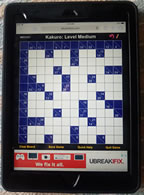
Kakuro Game Features, Tips & Keyboard Shortcuts


Kakuro has been upgraded for modern browsers with improved compatibility across desktop computers, tablets, and smartphones. The familiar gameplay remains the same while adding several enhancements, including improved mobile controls, faster puzzle entry, and new convenience features.

     On iPads it fits nicely holding vertically and smartphones it is best to hold horizontally. Mobile uses a sticky number pad & a sticky combo list.

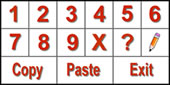
Sticky Number Pad:  

Tip: Remember Copy and Paste are time-savers when inputting pencilmarks

Summary of Keyboard Controls (desktop only):
Arrow Keys - Navigate the playing grid
Keys 1 - 9 - Enter a digit (make sure numlock is on for keypad)
<Space> or X - Clear Box
<Caps Lock> or P - Toggle Pencilmark
A - View Across Combos
D - View Down Combos
C - Copy Cell
V - Paste Cell
U - Undo Cell
+ - Converts all single-digit pencilmarks to numbers
? - Auto-complete row or column (see notes below)

Additional Keyboard Shortcuts in Kakuro (desktop only):
Main Menu: Up/Down Arrow = choose puzzle difficulty
Main Menu: Enter Key = Start Puzzle -or- Next page through instructions
Play Screen: CTRL+B = Clear Board, CTRL+S = Save Game
Play Screen: CTRL+H = Quick Help, CTRL+Q = Quit Game
Play Screen: Play Again? = Enter Key to return to main menu
Message Box: Y = Yes, N = No, Enter Key = OK, Esc Key = Closes


To print a puzzle: click the "Print" icon on the game board that opens up a print-friendly page. Next you can press CTRL+P to choose where to print to or use the browser menu and select print.

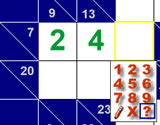
How the "?" question-mark works to avoid confusion when using mouse or touch screen:

   The ? button helps finish a row or column when there is only one possible digit left. For example, if the clue is 7 across 3 cells and you have already entered 2 and 4, the only remaining value is 1. Tapping or clicking the ? in the empty cell will automatically enter the correct digit.

This is a quick way to finish the remaining cells in a puzzle without having to do the final calculation yourself. You can also press the ? key on the keyboard to auto-complete the selected cell.

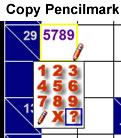
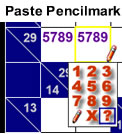
The "?" is also used to quickly copy/paste pencilmarks::


So for example if you enter 5789 as pencilmark possibilies in a box and want to repeat this for other empty boxes, simply select "?" on a blank box and pencilmarks 5789 will be automatically copied into that box. It is a copy and paste feature using the mouse. This saves time of repeated steps of re-entering the same pencilmarks.

You can also copy a group of previously entered pencilmarks in a box by selecting "?", then move to a blank box, select "?" again to paste. This can be a hugh time saver for mouse users when entering large # of repeated pencilmarks in different boxes.

There are multiple ways of accomplishing the same thing giving the player options.


ISSUE LIST WITH BROWSERS

Cannot Save and Restore Game in Internet Explorer 11 or above or Edge
Should the issue continue, you can disable Protected Mode. Protected Mode is designed to prevent malicious software from exploiting vulnerabilities in Internet Explorer 11. This mode may also block cookies depending on the current setup.

• Open Internet Explorer 11.
• Click Tools and then select Internet options.
• Go to Security tab.
• Under Security level for this zone, clear the check box for Enable Protected Mode (requires restarting Internet Explorer).
• Click OK.
• Close Internet Explorer 11 and then launch it again.